Permit Application Process
New Permit Application
Starting and Submitting an Application
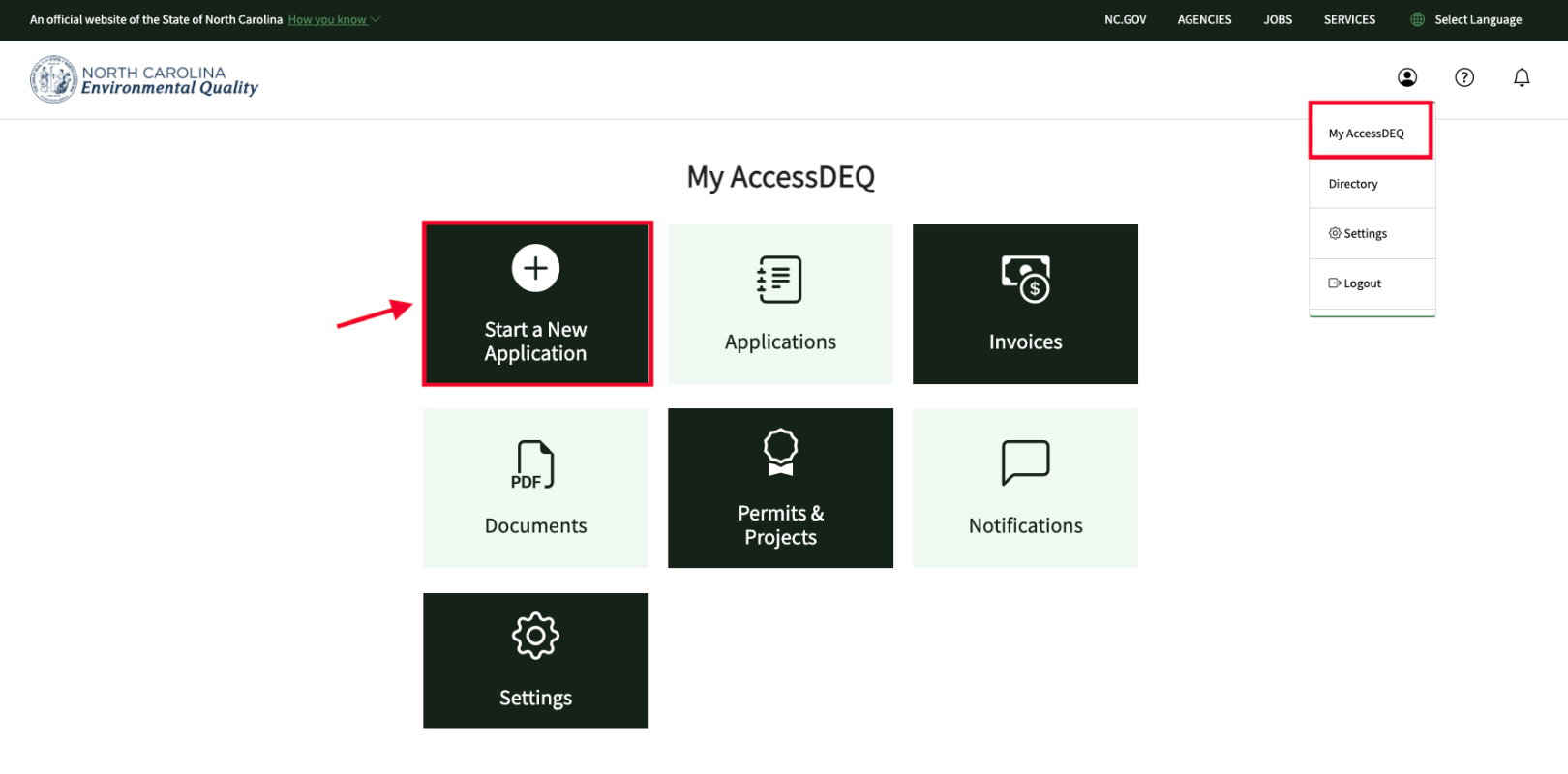
- After logging into the external portal, click on the person icon (dropdown menu) on the top right of the screen and select “My AccessDEQ”
- There are three ways you can start a new permit application (they all lead to the same place):
- Click on the “+” tile from the My AccessDEQ page
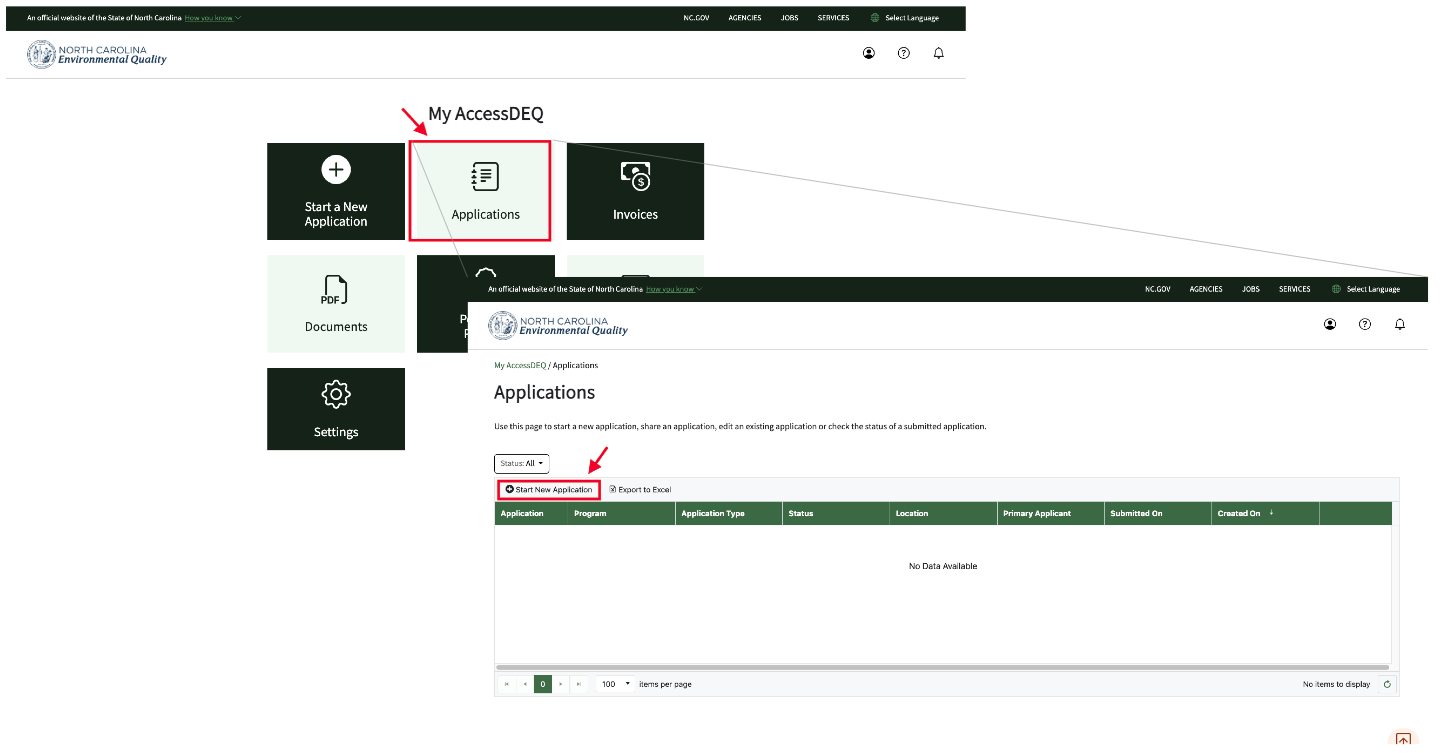
- Click on the “Applications” tile and then on the small “+ Start New Application” button just above the Applications table grid on the top left
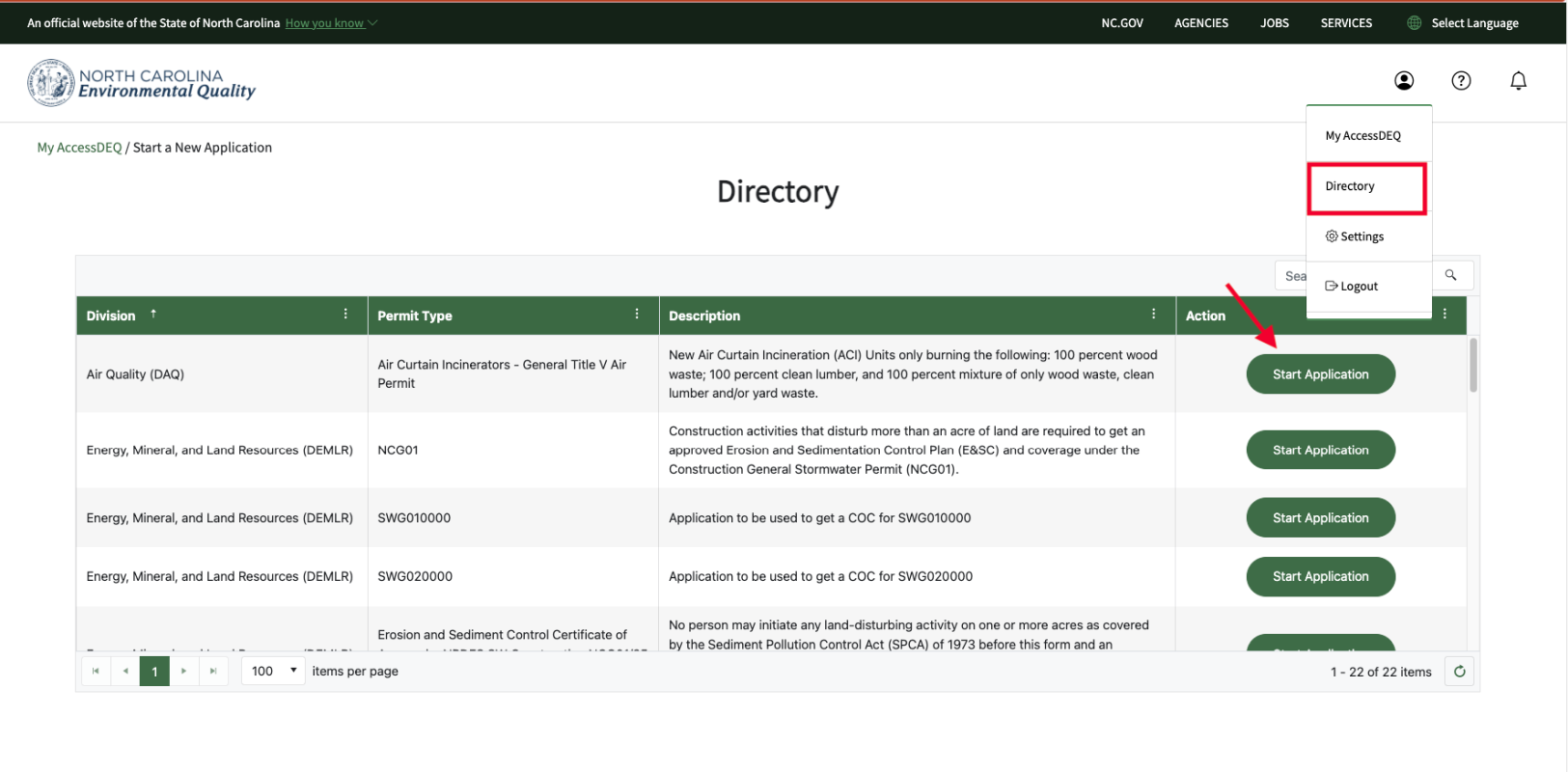
- Click on the Directory menu (under the person icon), and then on a big green “Start Application” button to the right of the permit type you are interested in
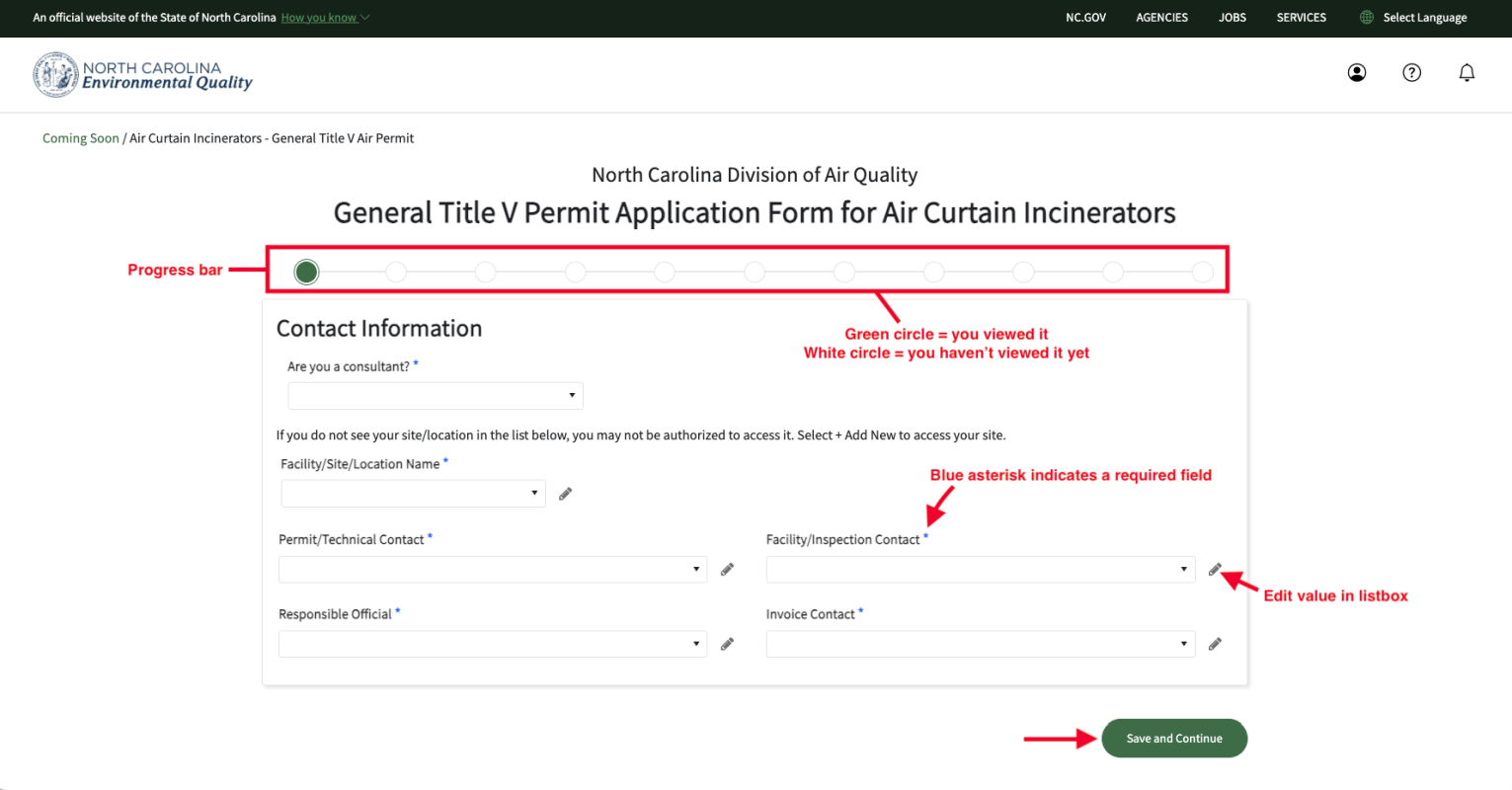
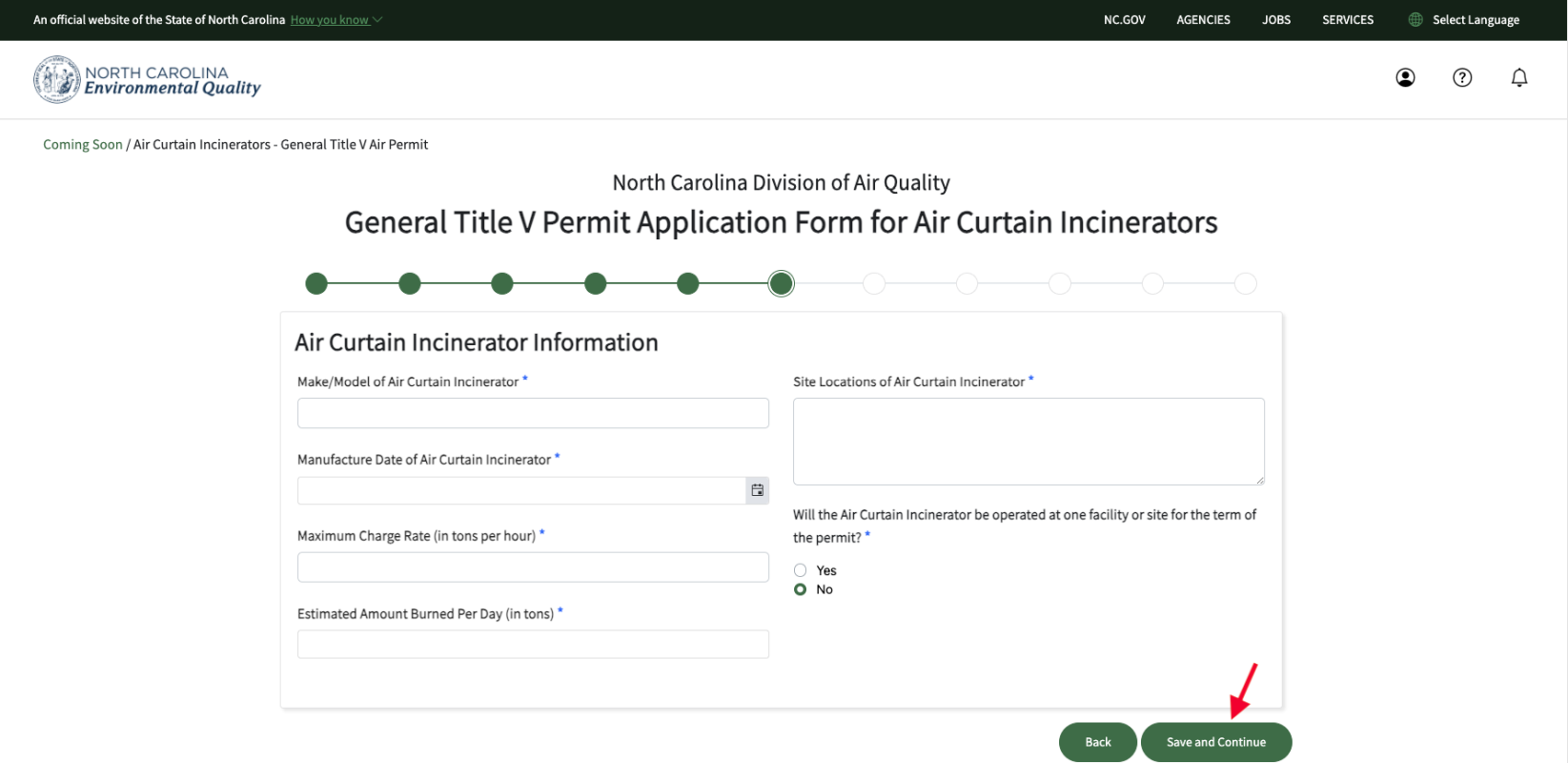
- As you progress within the permit application screens, you will see a series of white dots across the top of your screen, from left to right. These white dots change to filled-in green dots as you visit each page of the permit application. On the bottom right of each screen, you will see two large green buttons: "Previous" and “Save and Continue”. Keep moving from screen to screen by clicking on the “Save and Continue” buttons. Note that you will need to enter required fields before you can proceed to the next screen.
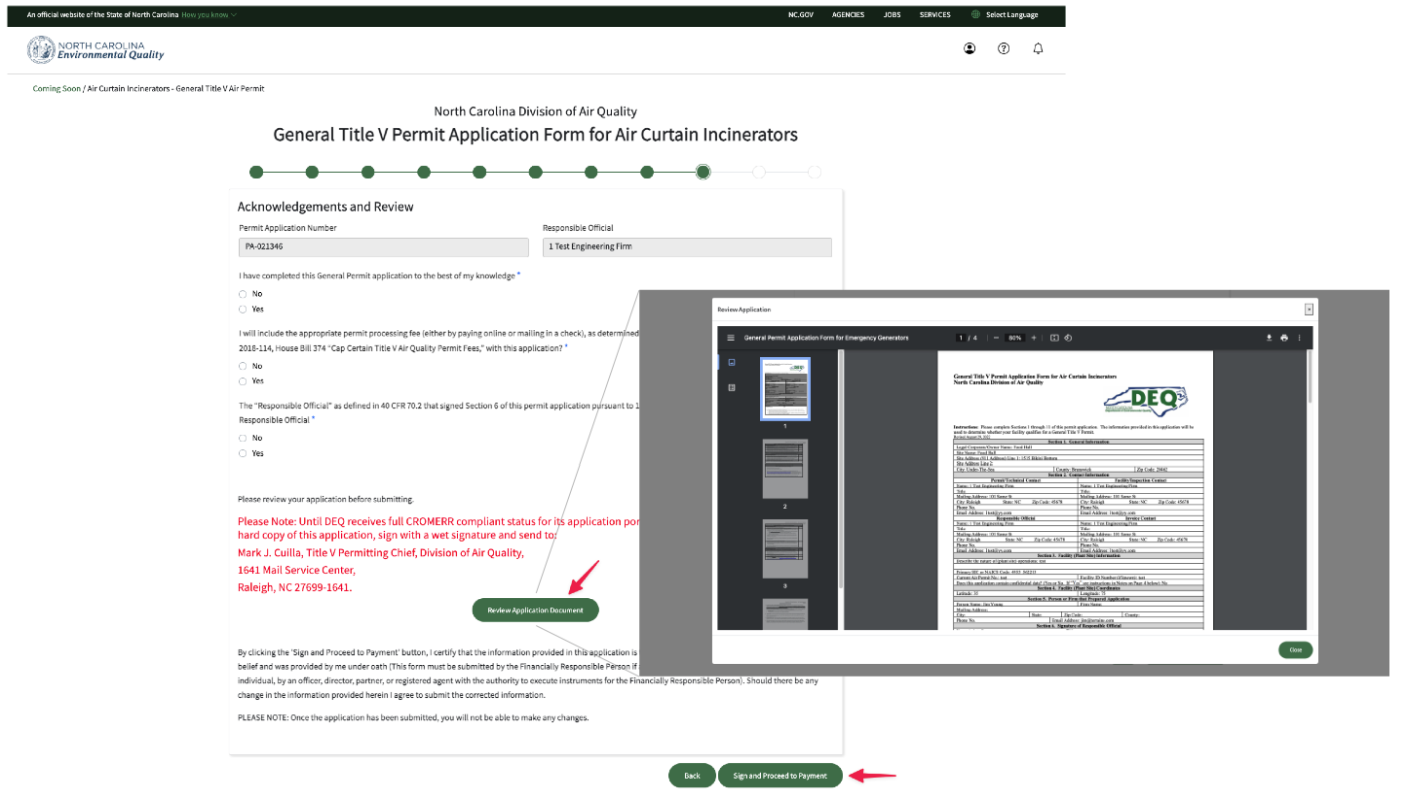
- When you get to the end of the permit application screens, you will see a green “Submit” button. Click that button to submit your permit application to NCDEQ. Note that you will have a chance to review your permit application as a completed PDF before submitting it
Steps to Edit an Existing Application
- Select “My AccessDEQ”
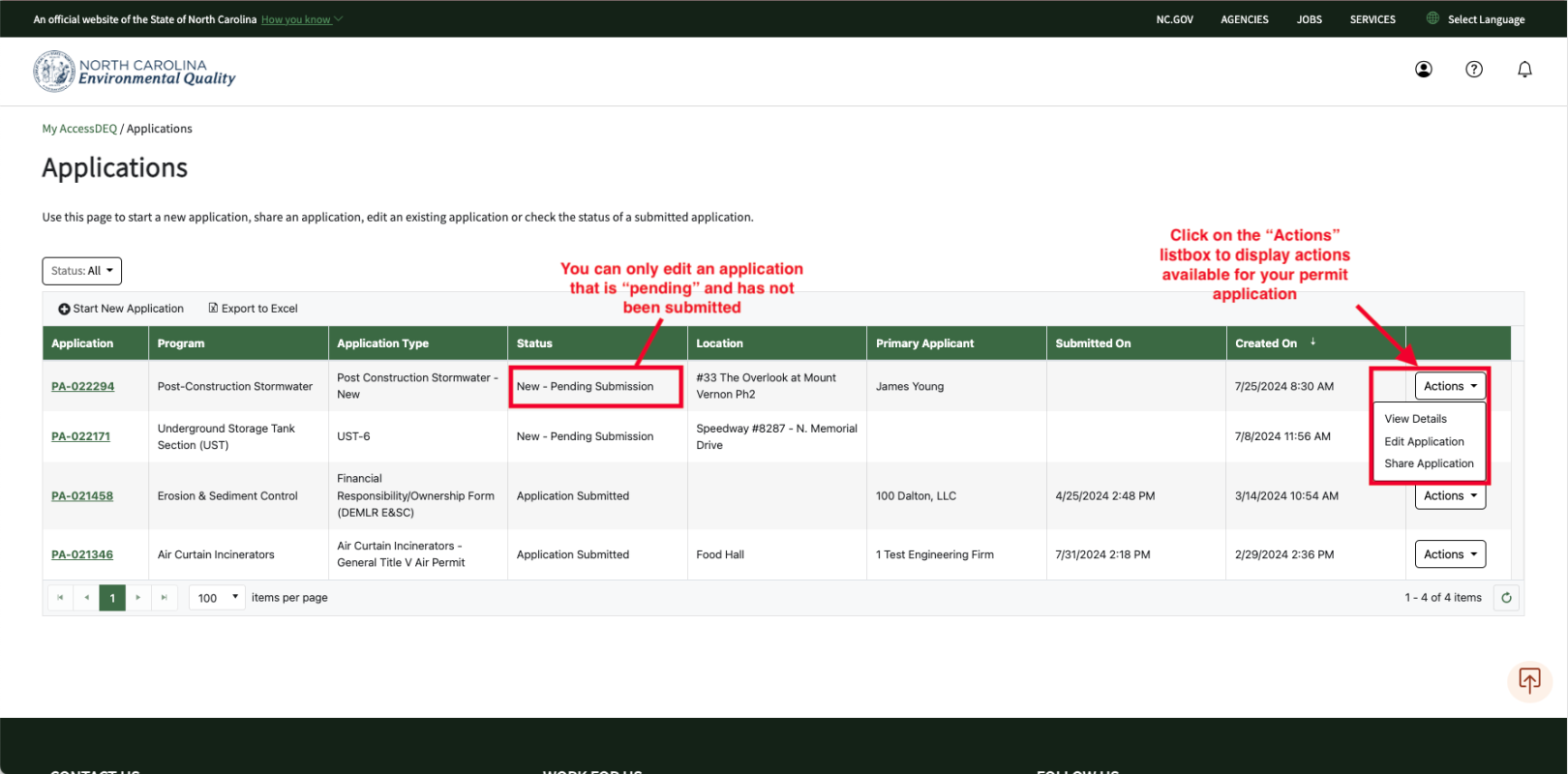
- Click on the “Applications” tile. You will then see your permit applications in a table grid.
On the far right of your permit application record, you will see an “Actions” listbox. Click this to view the actions available for your permit application. Note that you can only edit applications that have a “pending” status. Once a permit application has been submitted, it cannot be edited.
Notes
- You can start an application, click on the “Save and Continue” button, and pick up where you left off some other time. The system will save your progress (as long as you click on the “Save and Continue” button.
- You can only edit applications that have a “pending” status. Once a permit application has been submitted, it cannot be edited.
Screenshots