Troubleshooting
Clear Your Browser Cache
Sometimes cached files can cause havoc, particularly if some of those cached files are corrupted or have old content. Clearing your browser's cached files will cause the browser to request new fresh content from a website page. This can sometimes clear up an issue you are encountering on a website page.
Steps
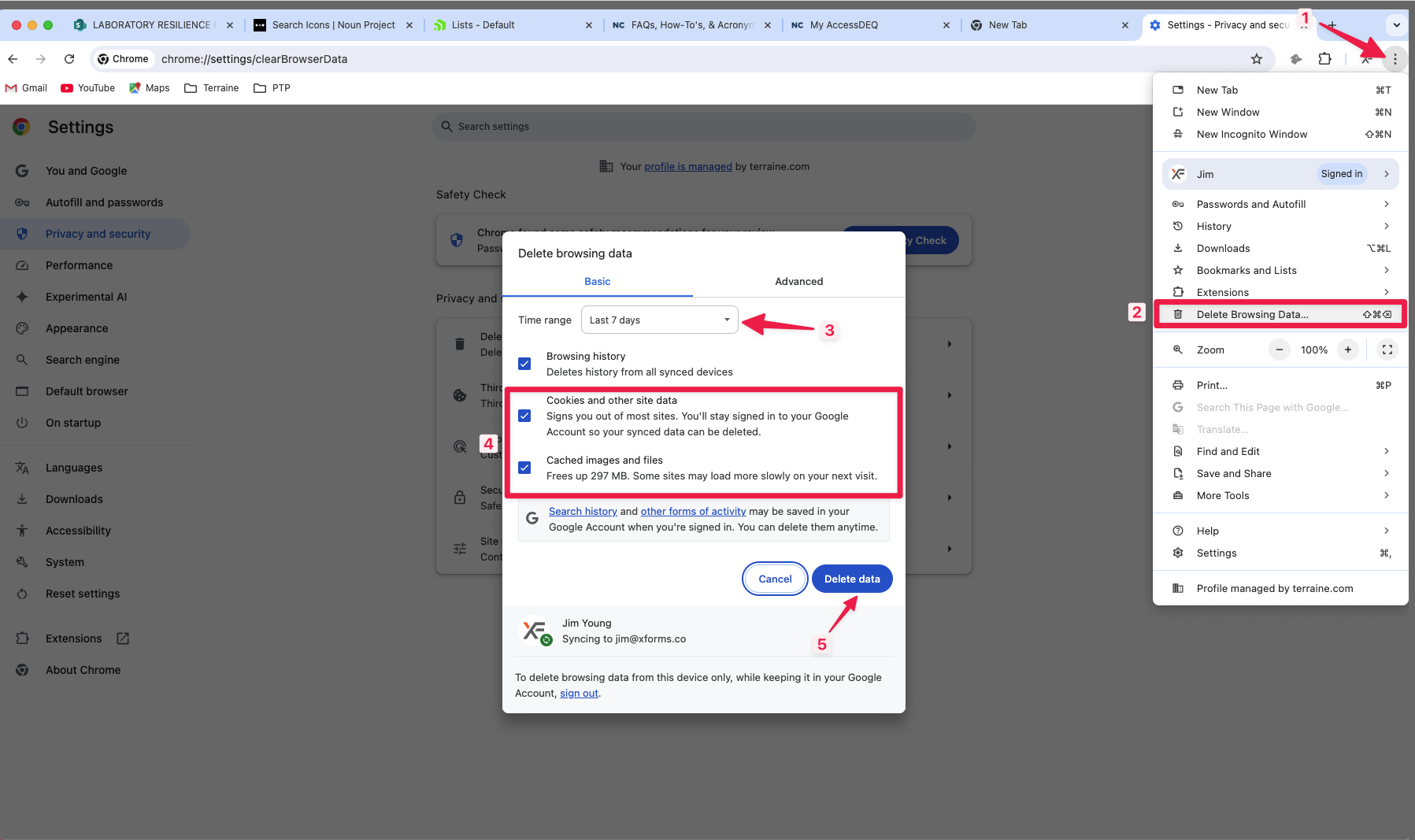
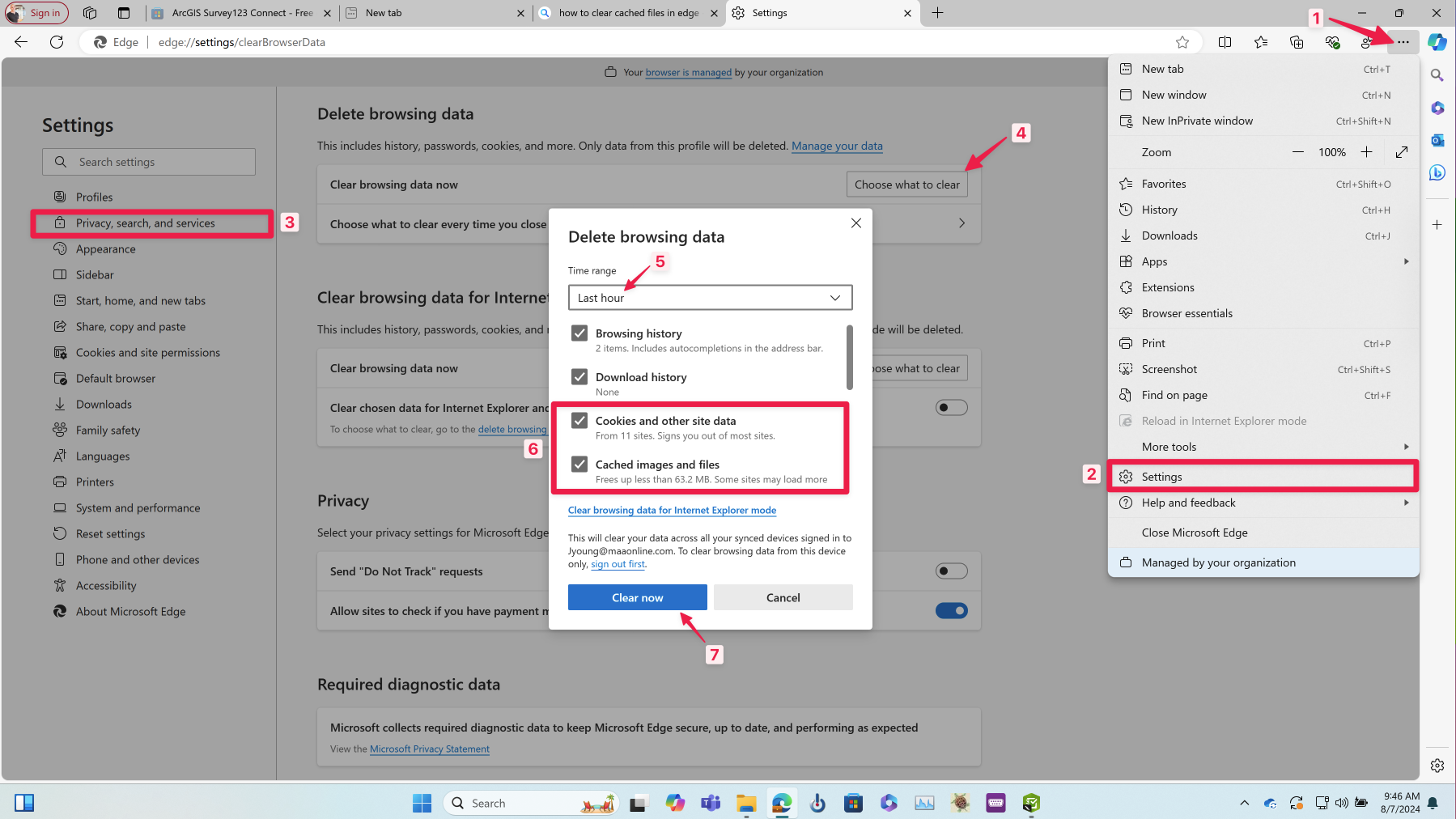
- On your computer, open Chrome or Edge
- At the top right, click on the vertical ellipsis (3 dots) icon
- In Chrome, click on "Delete Browsing Data..."
- In Edge, click on "Settings" and then on "Privacy"
- In Chrome, select a time range, check the boxes for Cookies and Cached Images, and click on the "Delete Data" button
- In Edge, scroll to the "Delete browsing data" section, click on the "Choose what to clear" button, select a time range, check to boxes for Cookies and Cached Images, and click on the "Clear Now" button
Screenshots