Troubleshooting
Use an Incognito (Private) Browser Window
Sometimes cached files can cause havoc, particularly if some of those cached files are corrupted or have old content. To bypass this content, you can open an incognito (aka private) browser window. While Chrome calls this an "incognito" browser window or tab, Microsoft Edge calls it an "InPrivate" window or tab.
How It Works
In Incognito, none of your browsing history, cookies and site data, or information entered in forms are saved on your device. This means your activity doesn't show up in your Chrome browser history, so people who also use your device won't see your activity. And in terms of cached files, nothing cached by your browser is used when serving up a website page in incognito mode. That means that instead of using cached files to serve up a website page, the browser will visit the website and request fresh content from that website page, thus avoiding anything old and/or corrupted. This often will resolve issues you might be experiencing with DEQ's external portal.
Steps
- On your computer, open Chrome or Edge
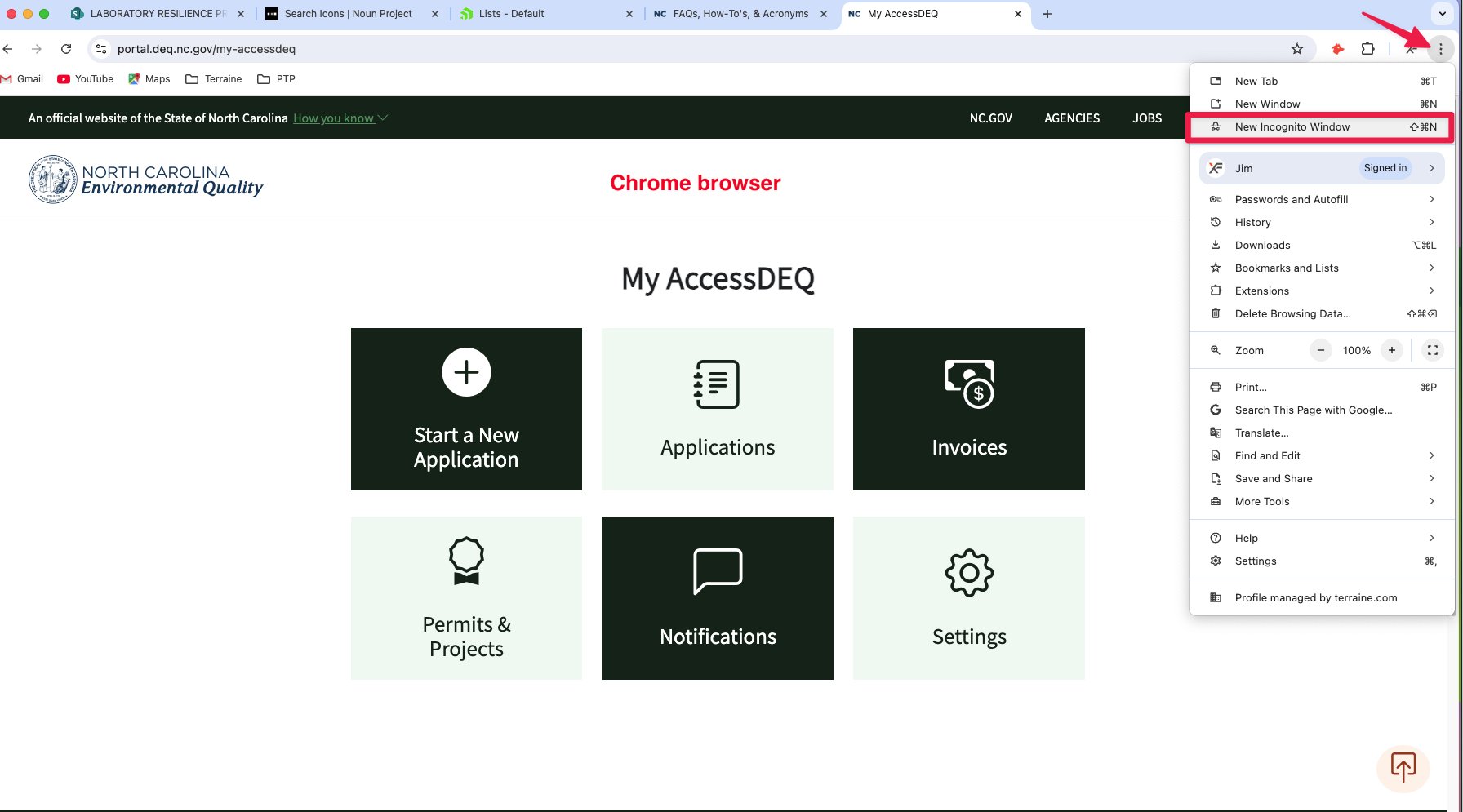
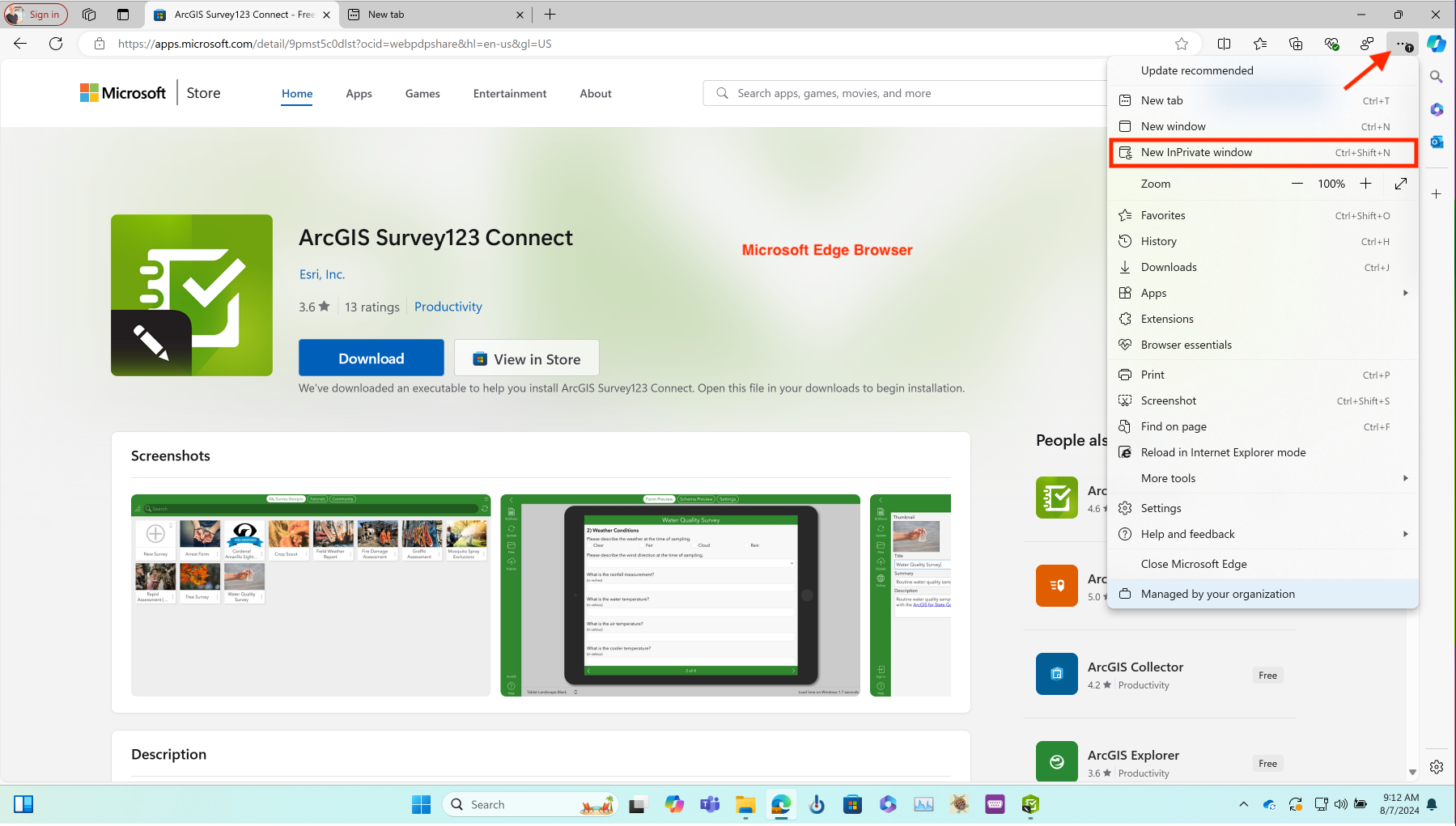
- At the top right, click on the vertical ellipsis (3 dots) icon and then select "New Incognito Window" (Chrome) or "New inPrivate Window (Edge)
- A new window appears. In the top corner, check for the Incognito icon
- Log back into the external portal and try loading the same page where you encountered the issue using a regular browser window
- If the issue persists in incognito mode, then the issue is not related to cached files. Please contact us to report the issue.
Screenshots